


Video Editor & Maker VideoShow
4.599.63K Reviews
App Specs
- Version
- 11.0.6.0
- Updated On
- License
- Free
- Downloads
- 100,000,000+
- Developer
- VIDEOSHOW Video Editor & Maker & AI Chat Generator
- Categories
- Video Players & Editors
- Platform
- Android, iOS
Screenshots

 Analysis by AppCompare
When I edit on a phone, the hardest part is not always the timeline; it is getting from an idea to a finished clip before the moment has passed. AI Video Editor - VideoShow AI is aimed at that quick, hands-on style of making videos, with editing tools and AI-assisted options gathered in one mobile app. In my experience, its appeal is less about replacing a desktop editor and more about making a short video feel presentable without turning the process into a project of its own.
Where a connection can shape the workflow
Video editing mixes several kinds of work: choosing clips already on a device, adjusting their order, adding sound or text, and preparing a finished file to share. AI-assisted tools and ready-made creative resources can make the process feel more immediate, but they may also involve steps that work best when the phone has a reliable connection. I treat those moments as something to plan for rather than assuming every part of an edit will behave the same way in every network situation.
That distinction matters when I am making something time-sensitive. If I am preparing a quick post while out, I would first decide which footage I want to use and keep the edit focused. I would also avoid leaving caption generation or other assisted tasks until the last minute, especially if I am somewhere with inconsistent reception. A simple cut can be easier to finish under pressure than a project that depends on several extra processing steps.
Guides and Analysis on Video Editor & Maker VideoShow
A mobile editor for short, practical projects
As a video editor in the Video Players & Editors category, the app suits the way many people create on a phone: record a few moments, shape them into a compact story, then share or save the result. I can see it working well for a family montage, a short product clip, a school or hobby update, or a casual travel recap. These are projects where a quick visual finish can matter more than having every detail of a professional editing suite.
A realistic example is filming a few scenes during a day out and wanting to send relatives a tidy recap that evening. I would pick only the clips that move the story along, trim pauses, and use a template or effect sparingly so the footage still feels personal. If I also want captions, I would check them before exporting: automatic text can save effort, but names, unusual places, and background speech are exactly the kinds of details worth reviewing by eye.
The app is developed by VIDEOSHOW Video Editor & Maker & AI Chat Generator. It is free to download, has a Teen content rating, and its current version is 11.0.3.0. It has a 4.5 average from around six million ratings and has passed 100 million installs, which suggests it has found a large audience among people looking for phone-based video creation. Those figures are useful context, but they do not tell me whether a particular tool will fit my editing habits; trying a small project is still the best way to judge that.
Choosing it over a more manual editor
The main trade-off I notice is between convenience and fine control. Compared with a basic gallery editor, a dedicated app like this can offer more ways to arrange a clip, add effects, build a themed montage, and make a video feel intentionally designed. Compared with a more advanced timeline editor, a template-led mobile workflow can be quicker to learn, but may feel less suited to someone who wants precise control over every layer, timing choice, and finishing detail.
Worth Reading Before You Choose

Ludo King Makes the Most of the Minutes Between Plans

Baby Panda World Brings Quick Play to Modern Phones, but Its Game Library Feels Busy

ESPN’s Live Game View Makes Following Close Games Easier

QuizzLand Review: A Good Fit for Short Trivia Breaks, Not Every Player

Basketball Stars: Multiplayer Is Fast, but Can It Recover When Matches Go Wrong?

WEBTOON Turns Phone Updates Into a Better Reading Routine
For a first edit, I would use the app’s guided or template-based options to get a draft together, then make deliberate changes rather than accepting every effect at once. A common mistake with themed editing is stacking transitions, filters, and decorative elements simply because they are available. One clear visual choice often keeps a short video easier to watch. If a project needs exact pacing, detailed audio mixing, or a consistent look across a large batch of clips, I would compare it with a more timeline-focused editor before committing to a longer workflow.
Keeping edits manageable on the move
Working on a small screen has its own practical limits. It is easy to tap the wrong clip or miss a tiny timing adjustment when editing on the go, so I find it sensible to make structural decisions first: choose the clips, put them in order, and remove the obvious dead space. Fine adjustments can come afterward, when I have time to check the result at a comfortable pace. This order also makes it less frustrating to revisit an edit after a distraction.
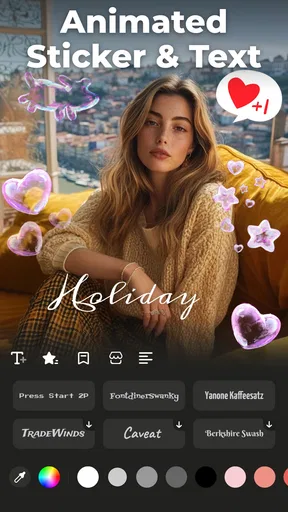
For captions, I would think about the viewing situation as well as the words. A viewer may watch with the sound low or off, so readable text can help, but captions should not cover a face or the important action. I would keep them short, check line breaks, and preview the whole clip rather than judging each caption in isolation. That small review step is particularly useful for speech with names, slang, or noisy surroundings.
Storage and connection are separate considerations for mobile video work. Video files can take up room, and sending a finished clip can be more demanding than editing a short sequence. I would leave enough space for the material I plan to use and export, and choose a convenient time and connection for sharing a larger result. That is a general mobile workflow precaution, not a reason to assume that every editing feature requires a network connection.
When an edit is interrupted
Phone editing often happens between other tasks, so interruptions are normal. Before trying an unfamiliar effect or starting a longer project, I would make a small test edit and check that the basic sequence—selecting clips, making changes, and producing a result—works as I expect. That gives me a low-stakes way to learn the interface and spot any friction before I have spent time polishing a larger video.
If a tool stalls or an export does not go as planned, I would avoid repeating every step immediately. First I would check whether the project itself is still available, whether the phone has enough free space, and whether the connection is stable if the task appears to rely on online processing or sharing. Then I would retry the smallest relevant step. This kind of calm, incremental recovery is more useful than changing several settings at once, because it helps identify whether the issue is tied to the edit, the device, or the network.
I would also keep a copy of important source clips until I have checked the finished video. That is a sensible habit with any editor: it means I can rebuild a short sequence if I change my mind or run into a problem, rather than treating the in-progress edit as the only copy of a project. For a casual clip this may be unnecessary; for a one-time family moment or a work post, it is an easy precaution.
Who is likely to enjoy it
I would recommend giving it a try if you want to make polished short videos on a phone and value accessible tools over a steep learning curve. It is especially appealing for casual creators who want a mixture of direct editing and creative shortcuts, or for someone who makes occasional social posts and does not want to move files to a computer for every small job. The free download makes it possible to explore the workflow before deciding whether any paid extras are worthwhile.
The in-app purchases range from $0.99 to $179.99 per item, so I would look carefully at what is being offered before buying anything. A free starting point is useful, but it does not mean every effect or option is included at no cost. If I only need a trim and a simple crop, I would begin with the free tools and avoid paying for extras until I know which specific feature I would use repeatedly.
On the other hand, I would skip it if my priority is meticulous, frame-by-frame editing or a tightly managed professional workflow. A larger screen and a desktop editor are more comfortable for projects with many layers, exact audio adjustments, or extensive revisions. I would also choose a simpler tool if I only need to cut a clip once and have no interest in effects, captions, or templates; extra options are not a benefit when they make a tiny task feel slower.
What to check before sharing
Exporting is the point where I would pause and watch the result from beginning to end. That catches awkward cuts, text that appears too briefly, audio that starts late, or an effect that looked better in the editor than it does in motion. If I am posting to a particular social platform, I would also check the final framing on the phone and make sure the most important subject is not near an edge where it might be obscured by interface elements.
For a clip meant to be watched by people who do not know the context, I would add just enough structure to make it understandable: an opening moment that establishes the scene, a few purposeful cuts, and a clean ending. A template can provide a visual starting point, but it cannot decide which moment matters most. That choice is still the editor’s job, and it has more effect on the final video than applying one more decorative effect.
Getting Started with AI Video Editor - VideoShow AI
First things first, downloading and setting up AI Video Editor - VideoShow AI was a breeze. It's available on both Android and iOS, so no worries about compatibility. Once you fire it up, you're greeted with a sleek, user-friendly interface. I mean, it’s like they knew I didn’t want to spend hours figuring out where everything is. The app’s dashboard is intuitive, and it’s packed with features that are easy to access.
Features That Stand Out
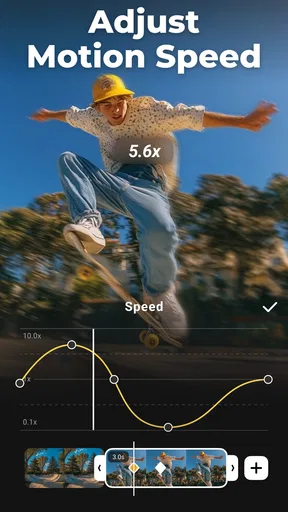
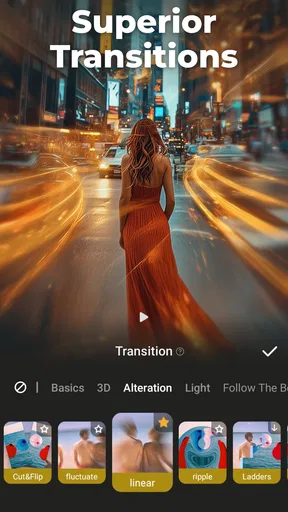
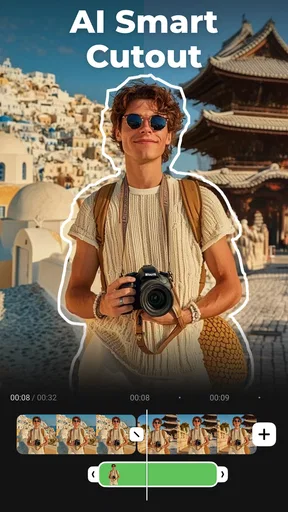
What really caught my eye was the sheer number of editing tools you get. The app offers everything from basic trimming and cropping to advanced features like AI-driven effects and transitions. I played around with some of the AI effects, and they are pretty impressive. The AI can automatically enhance colors, stabilize shaky footage, and even apply motion tracking to objects. It’s like having a mini Hollywood studio in your pocket!
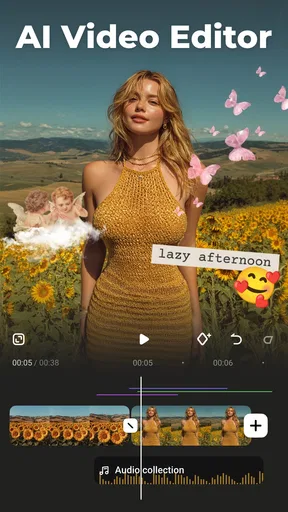
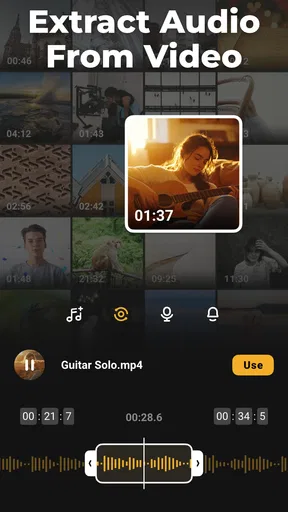
Another cool feature is the voiceover tool. You can add your commentary or voice notes directly to the video, which is perfect for tutorials or vlogs. Plus, there’s a neat little feature where you can auto-generate subtitles, which saves a ton of time if you’re looking to make your content accessible to a wider audience.
Creative Freedom with Templates
One thing I absolutely loved is the app’s collection of templates. Whether you're making a birthday montage or a travel vlog, there are a variety of templates you can choose from to give your video a professional touch in just a few taps. I tried out a couple of travel templates, and they added a nice flair to my clips without me having to overthink the design aspect.
Sharing Your Masterpiece
Once you’re done editing, sharing your video is super straightforward. You can directly upload your creations to social media platforms like Instagram, TikTok, and YouTube, or simply save them to your device. The app supports exporting in high resolution, which is a big plus if you’re aiming for quality content.
Performance and Usability
In terms of performance, AI Video Editor - VideoShow AI runs smoothly on both Android and iOS devices. I didn’t experience any lag or crashes, which is always a good sign. The app feels lightweight yet powerful, and it doesn’t hog your device’s resources. It’s perfect for both quick edits on the go and more detailed projects when you have some time to spare.
The app is free to download, but like many other apps, it offers in-app purchases for additional features and effects. From my experience, the free version offers plenty for casual users, but if you’re serious about video editing, the premium features might be worth the investment.
Final Thoughts
All in all, VideoShow is a solid choice for anyone looking to edit videos on their mobile device. It’s packed with features that cater to both beginners and more experienced editors, and its ease of use is a huge plus. Whether you’re making quick social media posts or diving into a more complex editing project, this app has got you covered.
So, if you’re on the hunt for a versatile video editing app, give VideoShow a shot. You might just find it becomes your go-to app for all things video!
My connectivity verdict
For me, the best way to approach this editor is to separate creative work from the parts that may depend on a reliable connection. I can plan a sequence, keep the project focused, and review its timing before I attempt an AI-assisted step or share the finished file. That makes the experience more predictable, especially when I am editing away from home or working against a deadline.
VideoShow works best as a convenient mobile toolkit
Pros
- Intuitive user interface for easy editing.
- Wide range of AI effects and transitions.
- Supports multiple video formats.
- Fast rendering with high-quality output.
- Frequent updates with new features.
Cons
- Limited free version features.
- Occasional ads can disrupt workflow.
- High processing demand on older devices.
- Exporting can be slow on large files.
- Requires internet for some AI features.
FAQs for Video Editor & Maker VideoShow
What features does AI Video Editor - VideoShow AI offer?
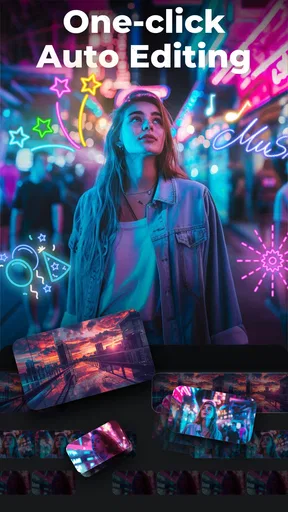
AI Video Editor - VideoShow AI provides a range of features including automated video editing, AI-driven effects, and transitions. The app also offers voice-over capabilities, background music integration, and customizable themes. It’s designed to simplify the editing process, making it suitable for both beginners and experienced users.
Is AI Video Editor - VideoShow AI user-friendly for beginners?
Yes, AI Video Editor - VideoShow AI is designed with an intuitive interface that caters to users of all skill levels. The AI-driven features automate many editing tasks, allowing beginners to create professional-looking videos without needing extensive editing knowledge. Tutorials and guides are also available to help new users get started.
Does AI Video Editor - VideoShow AI support multiple video formats?
AI Video Editor - VideoShow AI supports a wide range of video formats, ensuring compatibility with most devices and platforms. Users can import videos in formats like MP4, AVI, MOV, and more. This flexibility allows for seamless editing and exporting of videos for various purposes and platforms.
Are there any in-app purchases or subscription fees?
AI Video Editor - VideoShow AI offers both free and premium versions. While the free version includes basic editing features, a subscription unlocks advanced tools, additional effects, and removes watermarks. Users can choose from different subscription plans based on their needs and budget, ensuring flexibility and affordability.
How does AI Video Editor - VideoShow AI handle privacy and data security?
AI Video Editor - VideoShow AI prioritizes user privacy and data security by adhering to strict policies. The app does not collect unnecessary personal information and complies with data protection regulations. Users can confidently use the app, knowing their data is secure and their privacy is respected.


